 Serv-Minecraft
Bedrock
Managed from the Serv-Minecraft client area. 9 answers, updated October 5, 2026.
Key questions 1
Basic settings for a Bedrock server
The Paramètres (Settings) tab of a Bedrock server sets the server name, game mode, difficulty, cheats, world name and version. Everything else (player count, etc.) is changed in server.properties.
Paramètres tab: Nom du serveur (server name), Mode de jeu (game mode), Difficulté, Cheats (commandes), Nom du monde (world folder loaded at startup), Version Bedrock.
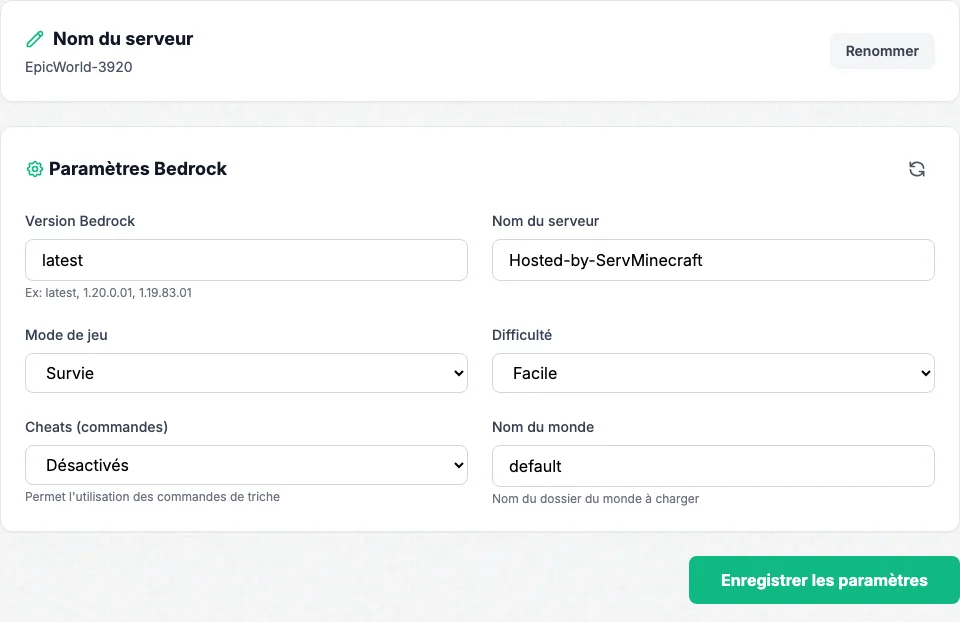
Paramètres (Settings) tab of a Bedrock server: version, server name, game mode, difficulty, cheats, world name Click Enregistrer les paramètres (save), then restart the server from the Console.
For a setting not in this tab (maximum players
max-players, view distance, allowlist), editserver.propertiesin the Fichiers (Files) tab: see edit server.properties.
Bedrock has no server-side plugins or mods: extensions come through addons, see prepare an addon.
Tutorials 7
Update the Bedrock version
By default your Bedrock server updates itself: a simple restart installs Mojang's latest version and keeps your worlds and settings.
Paramètres tab: check that Version Bedrock is set to
latest(the default).Console tab: click Redémarrer (restart). At startup the server compares its version with Mojang's latest release and installs it if needed (
[MAJ auto]lines in the console).Your worlds,
server.properties,permissions.jsonandallowlist.jsonare kept.
Bedrock players get game updates automatically: restart the server after a Minecraft update so they don't get an "Outdated server" error.
Install a specific Bedrock version
Type the exact number in Paramètres > Version Bedrock, save, then reinstall the server from the same tab.
Make a backup (see backups) or copy the
worldsfolder to your computer.Paramètres tab: in Version Bedrock, type the full number, for example
1.21.50.07, then click Enregistrer les paramètres.On the same page, Réinstaller le serveur section: start the reinstall. The server downloads the requested version and keeps your worlds and configuration files, even though the panel warning mentions deletion.
Start the server from the Console.
Common errors
- Going back to a version older than the one that created the world: Bedrock may refuse to load it. Keep a backup before downgrading.
A pinned version no longer updates on its own. To go back to automatic updates, set Version Bedrock to latest, save, then restart.
Restrict access with the allowlist
On Bedrock, add each player with the allowlist add command in the console, then turn on allow-list in server.properties.
Console tab: type
allowlist add XboxGamertagfor each allowed player, including yourself (exact Xbox gamertag, in quotes if it contains spaces).Fichiers tab: open
server.propertiesand setallow-list=true. A new server starts withallow-list=false.Save, then restart the server.
allowlist list shows the list, allowlist remove XboxGamertag removes a player. The list is stored in allowlist.json. On Minecraft Java, the equivalent is the whitelist.
Turn on the Beta API (experiments)
Some recent addons need the Beta API: stop the server, then turn it on in the Addons tab.
The world must exist: start the server once if you haven't yet.
Console tab: click Arrêter (stop). The setting is refused while the server is running.
Addons tab: turn on the API Bêta (expériences) switch. A copy of the original file is kept in the world folder (
level.dat.avant-api-beta): turn the switch off to go back.Start the server.
An addon whose description mentions scripting, API or experimental almost always needs this option: see troubleshoot an addon if it still has no effect.
Prepare an addon before installing it
Rename the addon to .zip, unzip it, then upload the behavior pack to behavior_packs/ and the resource pack to resource_packs/ via SFTP. Your server's Addons tab repeats these steps.
Before you start
An archive manager on your computer (built into Windows and macOS).
Download the addon (a
.mcaddonor.mcpackfile), for example from CurseForge or MCPEDL. Check that it supports your server's version.Rename the extension to
.zip: a.mcaddonor.mcpackis just a regular zip archive, only the extension changes.Unzip the archive. A
.mcaddonusually contains a behavior pack folder and a resource pack folder; a.mcpackcontains only one of them.Connect via SFTP (credentials in Mode Expert, SFTP page) and upload each unzipped folder to the server root:
arborescence> behavior_packs/PackName/> resource_packs/PackName/Check that
manifest.jsonis directly inside each of these folders, not in an extra subfolder created by unzipping.Move on to declare the addon in the world so it's actually picked up.
Common errors
- Uploading the parent folder from the unzip (which itself contains
behavior_packsandresource_packs) instead of its contents: the pack ends up one level too deep and isn't detected.
Declare an addon in the world
Copy the uuid and version from each pack's manifest.json into world_behavior_packs.json or world_resource_packs.json, at the root of the world.
Before you start
Having prepared the addon in behavior_packs or resource_packs.
Open the pack's
manifest.json(in the editor in the Fichiers (Files) tab or via WinSCP) and find, in theheaderblock, theuuidandversionfields.manifest.json:extrait> "header": {> "uuid": "a1b2c3d4-0000-1111-2222-333333333333",> "version": [1, 0, 0]> }At the root of the world (
worlds/VotreMonde/), open or createworld_behavior_packs.jsonfor a behavior pack,world_resource_packs.jsonfor a resource pack.Add an entry with the same
pack_id(the uuid from the manifest) and the sameversion:world_behavior_packs.json[ { "pack_id": "a1b2c3d4-0000-1111-2222-333333333333", "version": [1, 0, 0] }]For a second addon, add another entry in the same array, without removing the first one:
world_behavior_packs.json:diff[ { "pack_id": "a1b2c3d4-0000-1111-2222-333333333333", "version": [1, 0, 0] },+ { "pack_id": "f5e6d7c8-4444-5555-6666-777777777777", "version": [2, 1, 0] } ]Restart the server.
Common errors
- ! A version that doesn't match the manifest (here
[1, 0, 0]written while the manifest says[2, 0, 0]): the pack is ignored with no clear error message. - ! A truncated or badly copied
pack_id(here an incomplete uuid): the pack isn't recognized.
Play together across Java and Bedrock (crossplay)
A Bedrock server only accepts Bedrock players. Crossplay goes through the Geyser plugin on a Java server: contact support and we set it up with you.
Before you start
A Java Paper server.
Open a support ticket and say which Java server it is for.
Geyser needs an extra network port, which can't be created from the panel: support adds it to your server.
Then install Geyser and Floodgate (Floodgate lets Bedrock players in without a Java account) from the Plugins tab, and restart.
A native Bedrock server never accepts Java players: crossplay only works with a Java server running Geyser.
Common problems 1
An addon doesn't show up or doesn't work
The cause is almost always a mistyped uuid or version, a folder nested too deep, or the Beta API not turned on for an addon that needs it.
Check that the
pack_idinworld_behavior_packs.jsonorworld_resource_packs.jsonmatches the pack'smanifest.jsonuuidexactly, character for character.Check that the declared
versionmatches the manifest exactly.Check that
manifest.jsonis directly inside the pack's folder underbehavior_packsorresource_packs, not in a subfolder. See prepare an addon.If the addon uses scripting or describes itself as experimental, check that the Beta API is turned on.
Restart after each fix: packs don't reload on the fly.
Common errors
- A behavior pack with no matching resource pack (or the other way around) when the addon needs both: check the contents of the original
.mcaddon. - Two addons that modify the same block or entity can silently conflict: test one addon at a time if you see unexpected behavior.
No answer here. Try the help center home or open a ticket.