 Serv-Minecraft
Files and advanced access
Managed from the Serv-Minecraft client area. 7 answers, updated October 5, 2026.
Tutorials 7
The file manager
Fichiers (Files) tab: upload files by drag and drop, edit them in the built-in editor, move them by dragging onto a folder.
Upload: Envoyer button (upload), or drag and drop a file directly onto the page or onto a folder.
Edit: click a text file to open it in the editor.
Ctrl+Ssaves it.Move: drag the file onto the destination folder.
For a world, a modpack, or lots of files at once, SFTP is faster and resumes after a drop in connection.
Connect via SFTP with FileZilla
Get the address, port, and username from Avancé > Accès SFTP (Advanced > SFTP access), the password is your Mode Expert password.
AvancéAccès SFTP tab: click Voir les identifiants (view credentials; opens the Mode Expert page with the address, port, and username).
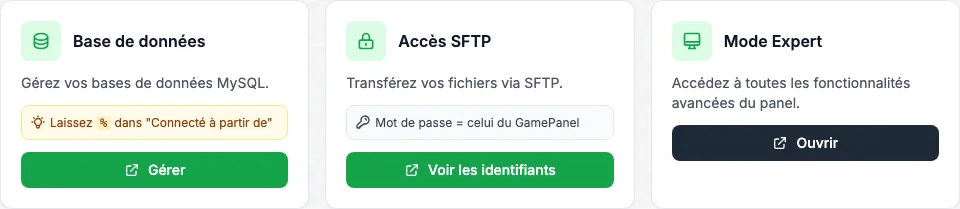
Panel Avancé (Advanced) tab: Base de données, Accès SFTP (Voir les identifiants) and Mode Expert cards In FileZilla: File, Site Manager, New Site. Protocol SFTP, copy the host, port, and user.
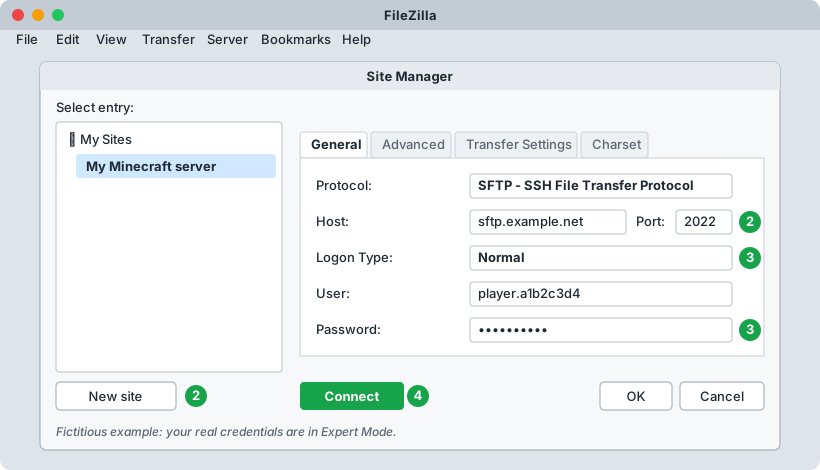
FileZilla Site Manager: SFTP protocol, host, port, user and Mode Expert password (fictitious example) Logon type Normal, password: your Mode Expert password, not your account password.
Connect, and accept the server's key fingerprint on the first connection.
For security reasons, this panel never shows your SFTP credentials directly: they stay in Mode Expert.
Connect via SFTP with WinSCP
Same principle as FileZilla: credentials in Avancé > Accès SFTP, Mode Expert password.
AvancéAccès SFTP tab: Voir les identifiants for the host, port, and user.
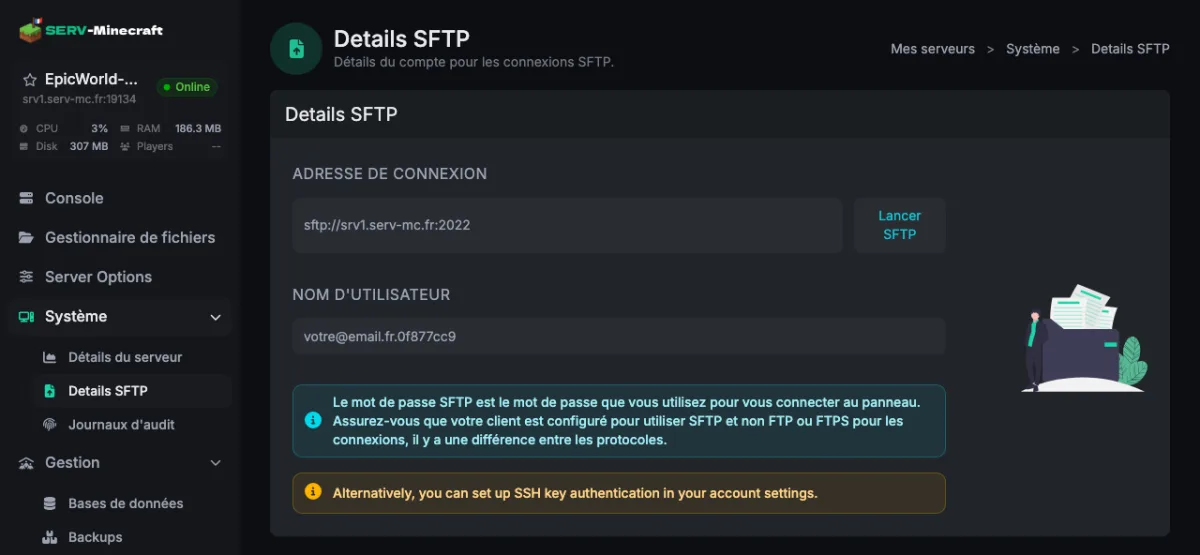
Mode Expert Details SFTP page: sftp:// address, port and username (masked example) In WinSCP, new site: File protocol SFTP, then Host name, Port number, and User name.
Password: your Mode Expert password.
Connect, and accept the server's key.
Forgot your Mode Expert password
Mode Expert (advanced panel and SFTP) has its own password, separate from your account password. Change it from your account's Paramètres (Settings) page.
Open your account's Paramètres page.
Mode Expert card: click Changer ce mot de passe (change this password).
Enter the new password (at least 8 characters), confirm it, and validate.
Use it right away in FileZilla or WinSCP.
Edit server.properties
The Paramètres (Settings) tab covers common settings. For anything else (world seed, world type, forced resource pack), edit server.properties directly, with the server stopped.
The Paramètres tab covers the common settings: MOTD, maximum player count, view and simulation distance, spawn protection, game mode, difficulty, PvP, hardcore, flight, world (animals, monsters, NPCs, Nether, structures, command blocks), security (Liste blanche = whitelist, Mode en ligne = online mode).
For a setting not in this tab (for example the world seed, the world type, or a forced resource pack): stop the server first, since it rewrites the file on stop and would otherwise overwrite your manual changes.
Open
server.propertiesin the Fichiers tab, edit the relevant line, and save.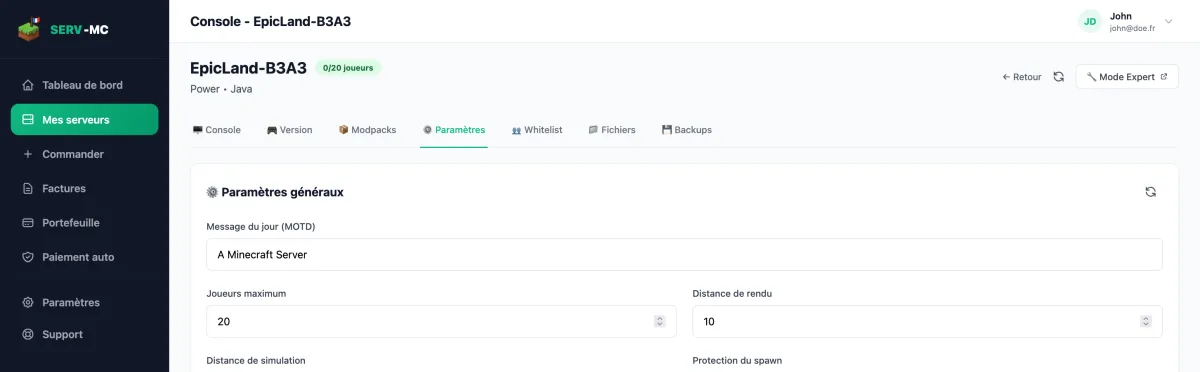
Panel Fichiers (Files) tab: server.properties at the root of the server Start the server.
server.properties:extrait> motd=My Minecraft server> max-players=20
Never touch server-port or server-ip: they're fixed by the hosting setup, and changing them would make the server unreachable.
Choose my world's seed
The seed is set with level-seed in server.properties, before the world generates. It has no effect on a world that's already been generated.
Before you start
Server stopped.
Stop the server.
Open
server.propertiesin the Fichiers tab (see edit server.properties).Enter the seed you want on the
level-seedline.server.properties:diff- level-seed=+ level-seed=mon-code-ou-nombreStart the server: the seed only applies when generating a brand new world.
Common errors
- Changing
level-seedon an existing world doesn't regenerate anything: the current world'slevel.datfile still takes priority. To start over with the new seed, delete the world folder (or changelevel-nameto create a new one) after a backup: deleting a world is irreversible without that backup.
Create a MySQL database
Avancé (Advanced) tab, Base de données card, Gérer (manage, opens Mode Expert) to create the database.
AvancéBase de données tab: click Gérer (manage; opens the Mode Expert page).
Create a database, leave
%in the Connecté à partir de field (connect from).Copy the host, port, database name, user, and password into the relevant plugin's configuration file (LuckPerms, CoreProtect...), then restart.
No answer here. Try the help center home or open a ticket.